
UniFi SD-WAN Fabric VPN Connectivity Issue
Overview
In a UniFi SD-WAN environment connecting a UDM-Pro primary site to a UCG remote site, remote-access VPN users were unable to reach networks behind the remote UCG despite successful VPN connectivity and working SD-WAN connectivity between gateways.
Network Architecture
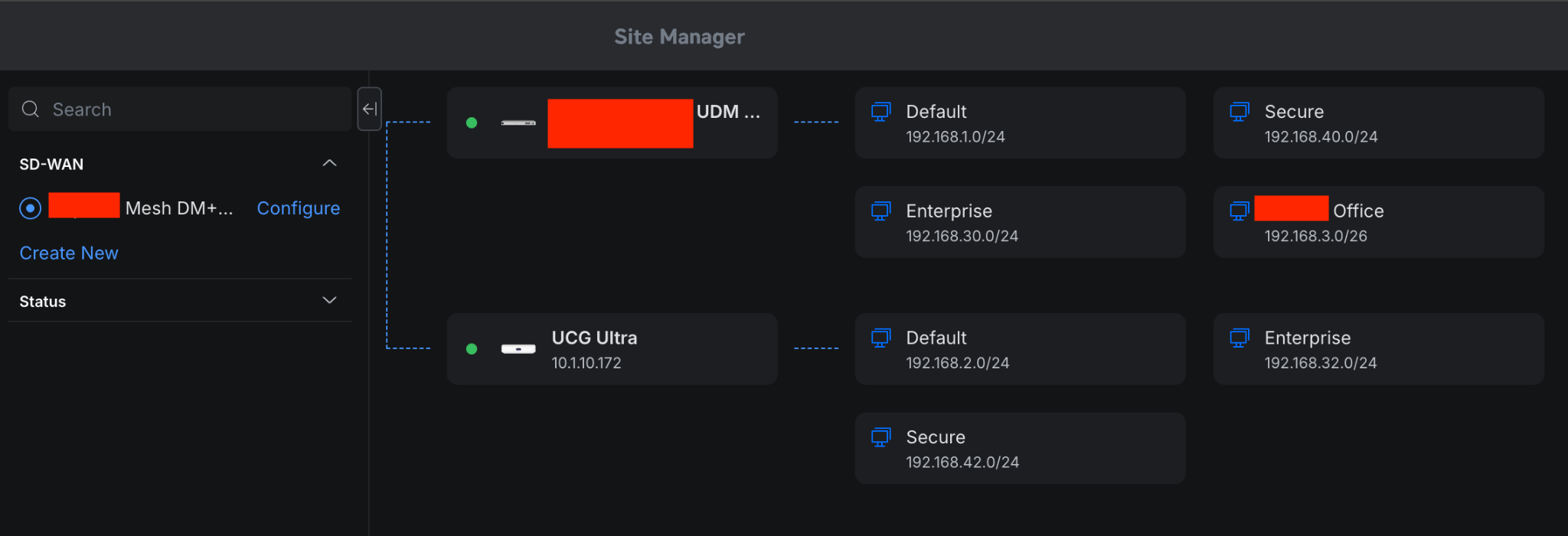
UniFi SD-WAN Fabric topology between UDM-Pro and UCG Ultra.
- UDM-Pro: Primary site running OpenVPN Server
- VPN Subnet:
192.168.3.0/26 - UCG Ultra Remote Networks:
192.168.2.0/24192.168.32.0/24192.168.42.0/24
- SD-WAN Fabric: Active between UDM-Pro and UCG Ultra
- UCG Static Route: VPN subnet routed back toward UDM-Pro
Problem Symptoms
- VPN clients could connect successfully.
- VPN clients could access UDM-Pro local networks.
- VPN clients could not reach UCG networks.
- UCG clients could ping the VPN gateway but not VPN clients.
- Gateway-to-gateway communication over SD-WAN worked normally.
Initial Hypotheses
- Firewall rules blocking VPN traffic
- Incorrect SD-WAN routing
- Missing return routes on the UCG
- Subnet overlap with the SD-WAN fabric
- Stale or incomplete VPN client configuration
Troubleshooting Steps
1. Firewall Validation
Existing VPN block rules were disabled, and an explicit allow rule was created to permit traffic from the VPN subnet to the UCG LAN subnets.
Source: 192.168.3.0/26
Destination: 192.168.2.0/24, 192.168.32.0/24, 192.168.42.0/24
Action: Allow
Protocol: Any
Result: No change in behavior.
2. Routing Verification
The UCG static route was updated to point the new VPN subnet back toward the UDM-Pro. Gateway-to-gateway connectivity remained functional.
Result: Routing between gateways was confirmed functional.
3. Subnet Conflict Check
The original VPN subnet 192.168.3.0/26 conflicted with the SD-WAN fabric. To avoid overlap, the OpenVPN
subnet was changed to 192.168.250.0/26.
Result: The issue persisted after changing the subnet.
4. Client-Side Route Inspection
On the VPN client, the route table was inspected using:
route printThe expected UCG routes were missing:
192.168.2.0/24192.168.32.0/24192.168.42.0/24
This indicated that the VPN client was not aware that the remote UCG networks were reachable through the VPN tunnel.
Root Cause
The VPN client profile was stale and did not include updated routing information for the downstream SD-WAN networks.
As a result, traffic destined for the UCG networks did not enter the VPN tunnel and instead followed the client device’s normal default route.
Resolution
- Changed the OpenVPN subnet to a dedicated non-overlapping subnet.
- Updated the UCG static route to point the new VPN subnet back toward the UDM-Pro.
- Downloaded a new OpenVPN client profile from the UniFi controller.
- Re-imported the VPN profile on the client device.
- Reconnected the VPN session and verified connectivity.
Result
After importing the new VPN client profile, the client routing table was updated correctly, and the VPN client was able to reach the UCG networks.
Lessons Learned
Troubleshooting must validate the data plane, not just the control plane.
A VPN can appear connected while still failing to route traffic correctly. Actual traffic
paths should be verified using tools like route print and tracert.
Client-side configuration is part of the network. Gateways and firewall rules may be correct, but endpoint routing tables can silently break connectivity.
Configuration changes can invalidate existing clients. After modifying VPN subnets, SD-WAN settings, or route advertisements, previously generated VPN profiles may become stale.
Symptoms do not always point to the failing component. The issue initially appeared to be related to firewall or routing policy, but the root cause was stale client-side route awareness.
Recommended Best Practices
- Use dedicated VPN subnets that do not overlap with LAN, VLAN, or SD-WAN networks.
- Regenerate VPN profiles after routing, subnet, or SD-WAN configuration changes.
- Validate both forward and return traffic paths.
- Use route inspection tools before assuming firewall failure.
- Document VPN, SD-WAN, and static route dependencies.
Useful Commands
ipconfig
route print
tracert 192.168.2.1
ping 192.168.2.1
Tags
UniFi SD-WAN OpenVPN Routing Troubleshooting